Showing posts with label Artworks. Show all posts

Wednesday, December 15, 2010

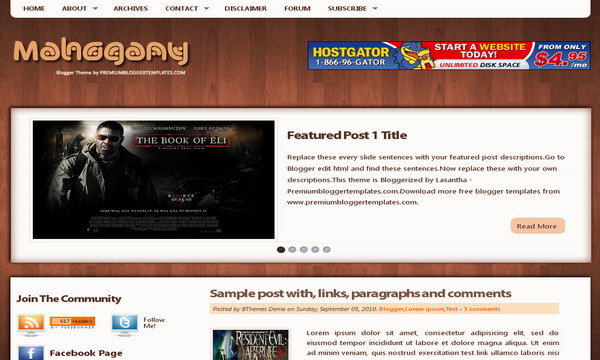
Mahogany Blogger Template

Mahogany Blogger Template


Template name : Mahogany

Template type : 1 Sidebar, 2 Column, 4 Column footer, Adapted from Wordpress, Artworks, Brown, Featured Section, Fixed width, Header Banner, Left Sidebar, Magazine, Rounded corners, Slider, Top Navigation Bar, White

Release date : December 16, 2010

Coder/Designer Name(s) : Lasantha Bandara / CamelGraph

Coder/Designer URL(s) : http://www.premiumbloggertemplates.com/
http://camelgraph.com/

Basic Instructions : How to install a Blogger template

Advanced Details : http://www.premiumbloggertemplates.com/2010/12/mahogany-blogger-template.html


Configure Meta tags

Login to your blogger dashboard--> layout- -> Edit HTML.Now Scroll down to where you see below codes :

<meta content='DESCRIPTION HERE' name='description'/>
<meta content='KEYWORDS HERE' name='keywords'/>

Replace DESCRIPTION HERE,KEYWORDS HERE as below.

DESCRIPTION HERE:Write your blog description
KEYWORDS HERE:Write the keywords of your blog separated by comma.

How To Configure Favicon:

Login to your blogger dashboard--> layout- -> Edit HTML.Now Scroll down to where you see below code :

<link href='YOUR-FAVICON-URL' rel='shortcut icon' type='image/vnd.microsoft.icon'/>

Now replace "YOUR-FAVICON-URL" with your Favicon address/url.


Configure Featured Content Slider:

Login to your blogger dashboard--> layout- -> Edit HTML.Find <!-- Featured Content Slider Started -->.

This is the code for the first slide:

<!-- Slide 1 Code Start -->
<div class='featured-post clearfix'>
<div class='slider-image'>
<img height='250' src='https://blogger.googleusercontent.com/img/b/R29vZ2xl/AVvXsEhjjyUCjDh5kr6Imp1uujWSHUrYDE9EY92CyHapV8dK_oU4ujTSNd_22HU6GGQuY0-6SQz4R2VgCd4t5DHqSM0SC4cjzyioB-ppSo1SJpdtLaA3wjpGrv31HG4xbEu5ZotT2iqNYNYzGqdD/s1600/1.jpg' width='400'/>
</div>
<div class='slider-post'>
<h2><a href='FEATURED-POST-LINK-1-HERE'>Featured Post 1 Title</a></h2>
<p>Replace these every slide sentences with your featured post descriptions.Go to Blogger edit html and find these sentences.Now replace these with your own descriptions.This theme is Bloggerized by Lasantha - Premiumbloggertemplates.com.Download more free blogger templates from www.premiumbloggertemplates.com.</p>
<a class='readmore' href='FEATURED-POST-LINK-1-HERE'><span>Read More</span></a>
</div>
</div>
<!-- Slide 1 Code End -->

Now replace,

"Featured Post 1 Title" with your featured post 1 title.
"FEATURED-POST-LINK-1-HERE" with your slide 1 link(2 times).
"Replace these every slide sentences with your featured post descriptions.Go to Blogger edit html and find these sentences.Now replace these with your own descriptions.This theme is Bloggerized by Lasantha - Premiumbloggertemplates.com.Download more free blogger templates from www.premiumbloggertemplates.com." with your slide 1 description.
"https://blogger.googleusercontent.com/img/b/R29vZ2xl/AVvXsEhjjyUCjDh5kr6Imp1uujWSHUrYDE9EY92CyHapV8dK_oU4ujTSNd_22HU6GGQuY0-6SQz4R2VgCd4t5DHqSM0SC4cjzyioB-ppSo1SJpdtLaA3wjpGrv31HG4xbEu5ZotT2iqNYNYzGqdD/s1600/1.jpg" with your slide 1 image address.

Now you have configured slide 1. Like this, you can configure next 4 slides.


How To Setup Subscription Box

Login to your blogger dashboard--> layout- -> Edit HTML.Now find "pbtemplates". You can find it several times.Replace these with your real Feedburner ID.

Replace "YOUR-TWITTER-USERNAME" with your real twitter username.
Replace "YOUR-FACEBOOK-URL" with your facebook profile or fan page url.


How To Configure Ad Banners

Find this and you can easily change this code as you like:
<!-- Banners Code Start -->

<div id='ads-block-125'>

<!-- Banner 1 Code -->
<a href='http://www.bluehost.com/track/pbt' rel='nofollow' target='_blank'><img src='https://blogger.googleusercontent.com/img/b/R29vZ2xl/AVvXsEjQoR7p2m_nPRbTrdi4iXCgT6lP6BDnKmMI-BFkWGRzOCs-hLH5nT7lsoQgL6tSMILbARywlRFOsXjlFtBPA6WQga_lmNBp5WTYyV9ikq7mXv20lmIyBpy7wthZfZlqI1seyvvOgi7Atk82/s1600/bh_125x125_02.gif'/></a>

<!-- Banner 2 Code -->
<a href='http://secure.hostgator.com/~affiliat/cgi-bin/affiliates/clickthru.cgi?id=lasantha' rel='nofollow' target='_blank'><img src='https://blogger.googleusercontent.com/img/b/R29vZ2xl/AVvXsEgUC211PyxgMZSHgZjEQZyrjOmXaocQw4vdzk5GlUDVPhlibuw7ylRE7pyQ7WzA8Dc67p12yf5bBgsVuSnJVt_2bCe2X2SGvsGCTEtr3lvJwE3eBI0nFOu3a20SCUm-t28aKpqB96P-oVhZ/s1600/125x125-2.gif'/></a>

<!-- Banner 3 Code -->
<a href='http://flexithemes.com/?partner=740' rel='nofollow' target='_blank'><img alt='Premium WordPress Themes' src='https://blogger.googleusercontent.com/img/b/R29vZ2xl/AVvXsEh3l9OuZFmbIkYo8MV0szkBOlGKnJKW8DjFs0BU9xgjfxGbo8cTTwkFyXx6r4ab9xVM3SE0Hs2CXj8t5emmGJqfgo5BBhlejiDtK3aosoMmjht5AXi4W4DdX0Dz1LMrDp3hbBBw73JfEsM/' style='border: 0;'/></a>

<!-- Banner 4 Code -->
<a href='http://secure.hostgator.com/~affiliat/cgi-bin/affiliates/clickthru.cgi?id=lasantha' rel='nofollow' target='_blank'><img src='https://blogger.googleusercontent.com/img/b/R29vZ2xl/AVvXsEjG078Cx3KNlAso0Y27IiNxq8QqGz96oBlVRNJTiAY95LdResDZf4RG-OTWeDfd4Rdu7dEqlX0SbgPolFqNeiZGSWrskmXKmFGCOVCAvYTXyIYL8pjlq1lwt5nrOeI1WiKbILBbcZdbCQ8O/s1600/125x125-animated-2.gif'/></a>

</div>
<div style='clear:both;'/>

<!-- Banners Code End -->
if you want to remove ad banners, simply remove above code.

How To Configure Navigation Menu

Find this:

<div class='clearfix' id='primary-nav'>
Now follow the configuration details here:

http://www.premiumbloggertemplates.com/2010/10/how-to-configure-navigation-menu.html


How To Add a Header Logo


You can add a header logo for this template easily in the "Page Elements" section(Blogger Default Method).Logo image size must be 325px width and 125px height.

If you have any problem regrading this template,leave a comment below.

Important !!!:

Please do not remove the footer credit. I spend several hours to create this blogger template. So that you can use it for your blog. All I ask is, stay the credit intact.

License:

This free Blogger template is licensed under the Creative Commons Attribution 3.0 License,which permits both personal and commercial use.
However, to satisfy the 'attribution' clause of the license, you are required to keep the footer links intact which provides due credit to its authors. For more specific details about the license, you may visit the URL below:
http://creativecommons.org/licenses/by/3.0/

Tuesday, December 7, 2010

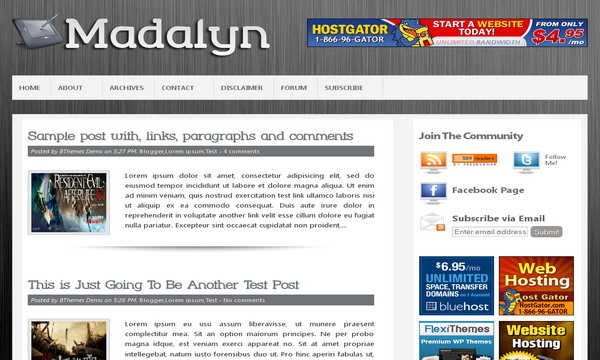
Madalyn Blogger Template

Madalyn Blogger Template


Template name : Madalyn

Template type : 1 Sidebar, 2 Column, 4 Column footer, Adapted from Wordpress, Artworks, Elegant, Fixed width, Grey, Header Banner, Magazine, Right Sidebar, Top Navigation Bar, Web 2.0, White

Release date : December 7, 2010

Coder/Designer Name(s) : Lasantha Bandara / CamelGraph

Coder/Designer URL(s) : http://www.premiumbloggertemplates.com/
http://camelgraph.com/

Basic Instructions : How to install a Blogger template

Advanced Details : http://www.premiumbloggertemplates.com/2010/12/madalyn-premium-blogger-template.html


Configure Meta tags

Login to your blogger dashboard--> layout- -> Edit HTML.Now Scroll down to where you see below codes :

<meta content='DESCRIPTION HERE' name='description'/>
<meta content='KEYWORDS HERE' name='keywords'/>

Replace DESCRIPTION HERE,KEYWORDS HERE as below.

DESCRIPTION HERE:Write your blog description
KEYWORDS HERE:Write the keywords of your blog separated by comma.

How To Configure Favicon:

Login to your blogger dashboard--> layout- -> Edit HTML.Now Scroll down to where you see below code :

<link href='YOUR-FAVICON-URL' rel='shortcut icon' type='image/vnd.microsoft.icon'/>

Now replace "YOUR-FAVICON-URL" with your Favicon address/url.


How To Setup Subscription Box

Login to your blogger dashboard--> layout- -> Edit HTML.Now find "pbtemplates". You can find it several times.Replace these with your real Feedburner ID.

Replace "YOUR-TWITTER-USERNAME" with your real twitter username.
Replace "YOUR-FACEBOOK-URL" with your facebook profile or fan page url.


How To Configure Ad Banners

Find this and you can easily change this code as you like:
<!-- Banners Code Start -->

<div id='ads-block-125'>

<!-- Banner 1 Code -->
<a href='http://www.bluehost.com/track/pbt' rel='nofollow' target='_blank'><img src='https://blogger.googleusercontent.com/img/b/R29vZ2xl/AVvXsEjQoR7p2m_nPRbTrdi4iXCgT6lP6BDnKmMI-BFkWGRzOCs-hLH5nT7lsoQgL6tSMILbARywlRFOsXjlFtBPA6WQga_lmNBp5WTYyV9ikq7mXv20lmIyBpy7wthZfZlqI1seyvvOgi7Atk82/s1600/bh_125x125_02.gif'/></a>

<!-- Banner 2 Code -->
<a href='http://secure.hostgator.com/~affiliat/cgi-bin/affiliates/clickthru.cgi?id=lasantha' rel='nofollow' target='_blank'><img src='https://blogger.googleusercontent.com/img/b/R29vZ2xl/AVvXsEgUC211PyxgMZSHgZjEQZyrjOmXaocQw4vdzk5GlUDVPhlibuw7ylRE7pyQ7WzA8Dc67p12yf5bBgsVuSnJVt_2bCe2X2SGvsGCTEtr3lvJwE3eBI0nFOu3a20SCUm-t28aKpqB96P-oVhZ/s1600/125x125-2.gif'/></a>

<!-- Banner 3 Code -->
<a href='http://flexithemes.com/?partner=740' rel='nofollow' target='_blank'><img alt='Premium WordPress Themes' src='https://blogger.googleusercontent.com/img/b/R29vZ2xl/AVvXsEh3l9OuZFmbIkYo8MV0szkBOlGKnJKW8DjFs0BU9xgjfxGbo8cTTwkFyXx6r4ab9xVM3SE0Hs2CXj8t5emmGJqfgo5BBhlejiDtK3aosoMmjht5AXi4W4DdX0Dz1LMrDp3hbBBw73JfEsM/' style='border: 0;'/></a>

<!-- Banner 4 Code -->
<a href='http://secure.hostgator.com/~affiliat/cgi-bin/affiliates/clickthru.cgi?id=lasantha' rel='nofollow' target='_blank'><img src='https://blogger.googleusercontent.com/img/b/R29vZ2xl/AVvXsEjG078Cx3KNlAso0Y27IiNxq8QqGz96oBlVRNJTiAY95LdResDZf4RG-OTWeDfd4Rdu7dEqlX0SbgPolFqNeiZGSWrskmXKmFGCOVCAvYTXyIYL8pjlq1lwt5nrOeI1WiKbILBbcZdbCQ8O/s1600/125x125-animated-2.gif'/></a>

</div>
<div style='clear:both;'/>

<!-- Banners Code End -->
if you want to remove ad banners, simply remove above code.

How To Configure Navigation Menu

Find this:

<div class='clearfix' id='primary-nav'>
Now follow the configuration details here:

http://www.premiumbloggertemplates.com/2010/10/how-to-configure-navigation-menu.html


How To Add a Header Logo

You can add a header logo for this template easily in the "Page Elements" section(Blogger Default Method).Logo image size must be 450px width and 125px height.

If you have any problem regrading this template,leave a comment below.

Important !!!:

Please do not remove the footer credit. I spend several hours to create this blogger template. So that you can use it for your blog. All I ask is, stay the credit intact.

License:

This free Blogger template is licensed under the Creative Commons Attribution 3.0 License,which permits both personal and commercial use.
However, to satisfy the 'attribution' clause of the license, you are required to keep the footer links intact which provides due credit to its authors. For more specific details about the license, you may visit the URL below:
http://creativecommons.org/licenses/by/3.0/
Monday, November 22, 2010

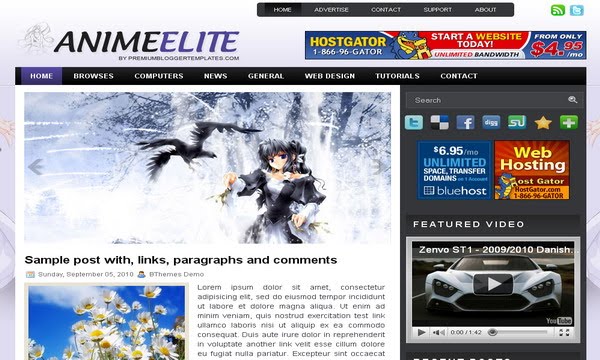
AnimeElite Blogger Template

AnimeElite Blogger Template


Template name : AnimeElite

Template type : 1 Sidebar, 2 Column, Adapted from Wordpress, Artworks, Featured Section, Fixed width, Header Banner, Magazine, Right Sidebar, Rounded corners, Slider, Top Navigation Bar, Violet, White

Release date : November 23, 2010

Coder/Designer Name(s) : Lasantha Bandara / New WP Themes

Coder/Designer URL(s) : http://www.premiumbloggertemplates.com/
http://newwpthemes.com/

Basic Instructions : How to install a Blogger template

Advanced Details : http://www.premiumbloggertemplates.com/2010/11/animeelite-blogger-template.html


Configure Meta tags

Login to your blogger dashboard--> layout- -> Edit HTML.Now Scroll down to where you see below codes :

<meta content='DESCRIPTION HERE' name='description'/>
<meta content='KEYWORDS HERE' name='keywords'/>

Replace DESCRIPTION HERE,KEYWORDS HERE as below.

DESCRIPTION HERE:Write your blog description
KEYWORDS HERE:Write the keywords of your blog separated by comma.

How To Configure Favicon:

Login to your blogger dashboard--> layout- -> Edit HTML.Now Scroll down to where you see below code :

<link href='YOUR-FAVICON-URL' rel='shortcut icon' type='image/vnd.microsoft.icon'/>

Now replace "YOUR-FAVICON-URL" with your Favicon address/url.


Configure Featured Content Slider:

Login to your blogger dashboard--> layout- -> Edit HTML.Find <!-- Featured Content Slider Started -->.Now scroll down slowly and you can see each featured slider codes between <div class='imageElement'> and </div> .

Now replace,

"This is featured post X title" with your featured post title.
"SLIDER-X-URL-HERE" with your featured post title.
Slider description with your slider description.
Slider image with your slider image.

for each featured slider.

How To Add a Header Logo

You can add a header logo for this template easily in the "Page Elements" section(Blogger Default Method).Logo image size must be 373px width and 83px height.

If you have any problem regrading this template,leave a comment below.

Important !!!:

Please do not remove the footer credit. I spend several hours to create this blogger template. So that you can use it for your blog. All I ask is, stay the credit intact.

License:

This free Blogger template is licensed under the Creative Commons Attribution 3.0 License,which permits both personal and commercial use.
However, to satisfy the 'attribution' clause of the license, you are required to keep the footer links intact which provides due credit to its authors. For more specific details about the license, you may visit the URL below:
http://creativecommons.org/licenses/by/3.0/

Wednesday, October 20, 2010

iRecipes Blogger Template

iRecipes Blogger Template


Template name : iRecipes

Template type : 1 Sidebar, 2 Column, Adapted from Wordpress, Artworks, Featured Section, Fixed width, Header Banner, Magazine, Orange, Right Sidebar, Rounded corners, Slider, Top Navigation Bar, White

Release date : October 21, 2010

Coder/Designer Name(s) : Lasantha Bandara / New WP Themes

Coder/Designer URL(s) : http://www.premiumbloggertemplates.com/
http://newwpthemes.com/

Basic Instructions : How to install a Blogger template

Advanced Details : http://www.premiumbloggertemplates.com/2010/10/irecipes-blogger-template.html


Configure Meta tags

Login to your blogger dashboard--> layout- -> Edit HTML.Now Scroll down to where you see below codes :

<meta content='DESCRIPTION HERE' name='description'/>
<meta content='KEYWORDS HERE' name='keywords'/>

Replace DESCRIPTION HERE,KEYWORDS HERE as below.

DESCRIPTION HERE:Write your blog description
KEYWORDS HERE:Write the keywords of your blog separated by comma.

How To Configure Favicon:

Login to your blogger dashboard--> layout- -> Edit HTML.Now Scroll down to where you see below code :

<link href='YOUR-FAVICON-URL' rel='shortcut icon' type='image/vnd.microsoft.icon'/>

Now replace "YOUR-FAVICON-URL" with your Favicon address/url.


Configure Featured Content Slider:

Login to your blogger dashboard--> layout- -> Edit HTML.Find <!-- Featured Content Slider Started -->.Now scroll down slowly and you can see each featured slider codes between <div class='imageElement'> and </div> .

Now replace,

"This is featured post X title" with your featured post title.
"SLIDER-X-URL-HERE" with your featured post title.
Slider description with your slider description.
Slider image with your slider image.

for each featured slider.

How To Add a Header Logo

You can add a header logo for this template easily in the "Page Elements" section(Blogger Default Method).Logo image size must be 287px width and 80px height.

If you have any problem regrading this template,leave a comment below.

Important !!!:

Please do not remove the footer credit. I spend several hours to create this blogger template. So that you can use it for your blog. All I ask is, stay the credit intact.

License:

This free Blogger template is licensed under the Creative Commons Attribution 3.0 License,which permits both personal and commercial use.
However, to satisfy the 'attribution' clause of the license, you are required to keep the footer links intact which provides due credit to its authors. For more specific details about the license, you may visit the URL below:
http://creativecommons.org/licenses/by/3.0/

Monday, October 18, 2010

Vitalis Blogger Template

Vitalis Blogger Template


Template name : Vitalis

Template type : 2 Sidebar, 3 Column, Adapted from Wordpress, Artworks, Black, Featured Section, Fixed width, Header Banner, Magazine, Orange, Right Sidebar, Slider, Top Navigation Bar, Web 2.0, White

Release date : October 19, 2010

Coder/Designer Name(s) : Lasantha Bandara / New WP Themes

Coder/Designer URL(s) : http://www.premiumbloggertemplates.com/
http://newwpthemes.com/

Basic Instructions : How to install a Blogger template

Advanced Details : http://www.premiumbloggertemplates.com/2010/10/vitalis-blogger-template.html


Configure Meta tags

Login to your blogger dashboard--> layout- -> Edit HTML.Now Scroll down to where you see below codes :

<meta content='DESCRIPTION HERE' name='description'/>
<meta content='KEYWORDS HERE' name='keywords'/>

Replace DESCRIPTION HERE,KEYWORDS HERE as below.

DESCRIPTION HERE:Write your blog description
KEYWORDS HERE:Write the keywords of your blog separated by comma.

How To Configure Favicon:

Login to your blogger dashboard--> layout- -> Edit HTML.Now Scroll down to where you see below code :

<link href='YOUR-FAVICON-URL' rel='shortcut icon' type='image/vnd.microsoft.icon'/>

Now replace "YOUR-FAVICON-URL" with your Favicon address/url.


Configure Featured Content Slider:

Login to your blogger dashboard--> layout- -> Edit HTML.Find <!-- Featured Content Slider Started -->.Now scroll down slowly and you can see each featured slider codes between <div class='imageElement'> and </div> .

Now replace,

"This is featured post X title" with your featured post title.
"SLIDER-X-URL-HERE" with your featured post title.
Slider description with your slider description.
Slider image with your slider image.

for each featured slider.

How To Add a Header Logo

You can add a header logo for this template easily in the "Page Elements" section(Blogger Default Method).Logo image size must be 322px width and 69px height.

If you have any problem regrading this template,leave a comment below.

Important !!!:

Please do not remove the footer credit. I spend several hours to create this blogger template. So that you can use it for your blog. All I ask is, stay the credit intact.

License:

This free Blogger template is licensed under the Creative Commons Attribution 3.0 License,which permits both personal and commercial use.
However, to satisfy the 'attribution' clause of the license, you are required to keep the footer links intact which provides due credit to its authors. For more specific details about the license, you may visit the URL below:
http://creativecommons.org/licenses/by/3.0/

Wednesday, October 13, 2010

Zenit Blogger Template

Zenit Blogger Template


Template name : Zenit

Template type : 1 Sidebar, 2 Column, Adapted from Wordpress, Artworks, Black, Featured Section, Fixed width, Header Banner, Magazine, Orange, Right Sidebar, Slider, Top Navigation Bar, Web 2.0, Yellow

Release date : October 13, 2010

Coder/Designer Name(s) : Lasantha Bandara / New WP Themes

Coder/Designer URL(s) : http://www.premiumbloggertemplates.com/
http://newwpthemes.com/

Basic Instructions : How to install a Blogger template

Advanced Details : http://www.premiumbloggertemplates.com/2010/10/zenit-blogger-template.html


Configure Meta tags

Login to your blogger dashboard--> layout- -> Edit HTML.Now Scroll down to where you see below codes :

<meta content='DESCRIPTION HERE' name='description'/>
<meta content='KEYWORDS HERE' name='keywords'/>

Replace DESCRIPTION HERE,KEYWORDS HERE as below.

DESCRIPTION HERE:Write your blog description
KEYWORDS HERE:Write the keywords of your blog separated by comma.

How To Configure Favicon:

Login to your blogger dashboard--> layout- -> Edit HTML.Now Scroll down to where you see below code :

<link href='YOUR-FAVICON-URL' rel='shortcut icon' type='image/vnd.microsoft.icon'/>

Now replace "YOUR-FAVICON-URL" with your Favicon address/url.


Configure Featured Content Slider:

Login to your blogger dashboard--> layout- -> Edit HTML.Find <!-- Featured Content Slider Started -->.Now scroll down slowly and you can see each featured slider codes between <div class='imageElement'> and </div> .

Now replace,

"This is featured post X title" with your featured post title.
"SLIDER-X-URL-HERE" with your featured post title.
Slider description with your slider description.
Slider image with your slider image.

for each featured slider.

If you have any problem regrading this template,leave a comment below.

Important !!!:

Please do not remove the footer credit. I spend several hours to create this blogger template. So that you can use it for your blog. All I ask is, stay the credit intact.

License:

This free Blogger template is licensed under the Creative Commons Attribution 3.0 License,which permits both personal and commercial use.
However, to satisfy the 'attribution' clause of the license, you are required to keep the footer links intact which provides due credit to its authors. For more specific details about the license, you may visit the URL below:
http://creativecommons.org/licenses/by/3.0/

Tuesday, October 12, 2010

Anime Online Blogger Template

Anime Online Blogger Template


Template name : Anime Online

Template type : 1 Sidebar, 2 Column, Adapted from Wordpress, Artworks, Elegant, Featured Section, Fixed width, Gradients, Green, Header Banner, Magazine, Pbtemplates, Right Sidebar, Slider, Top Navigation Bar, White

Release date : October 12, 2010

Coder/Designer Name(s) : Lasantha Bandara / New WP Themes

Coder/Designer URL(s) : http://www.premiumbloggertemplates.com/
http://newwpthemes.com/

Basic Instructions : How to install a Blogger template

Advanced Details : http://www.premiumbloggertemplates.com/2010/10/anime-online-blogger-template.html


Configure Meta tags

Login to your blogger dashboard--> layout- -> Edit HTML.Now Scroll down to where you see below codes :

<meta content='DESCRIPTION HERE' name='description'/>
<meta content='KEYWORDS HERE' name='keywords'/>

Replace DESCRIPTION HERE,KEYWORDS HERE as below.

DESCRIPTION HERE:Write your blog description
KEYWORDS HERE:Write the keywords of your blog separated by comma.

How To Configure Favicon:

Login to your blogger dashboard--> layout- -> Edit HTML.Now Scroll down to where you see below code :

<link href='YOUR-FAVICON-URL' rel='shortcut icon' type='image/vnd.microsoft.icon'/>

Now replace "YOUR-FAVICON-URL" with your Favicon address/url.


Configure Featured Content Slider:

Login to your blogger dashboard--> layout- -> Edit HTML.Find <!-- Featured Content Slider Started -->.Now scroll down slowly and you can see each featured slider codes between <div class='imageElement'> and </div> .

Now replace,

"This is featured post X title" with your featured post title.
"SLIDER-X-URL-HERE" with your featured post title.
Slider description with your slider description.
Slider image with your slider image.

for each featured slider.

If you have any problem regrading this template,leave a comment below.

Important !!!:

Please do not remove the footer credit. I spend several hours to create this blogger template. So that you can use it for your blog. All I ask is, stay the credit intact.

License:

This free Blogger template is licensed under the Creative Commons Attribution 3.0 License,which permits both personal and commercial use.
However, to satisfy the 'attribution' clause of the license, you are required to keep the footer links intact which provides due credit to its authors. For more specific details about the license, you may visit the URL below:
http://creativecommons.org/licenses/by/3.0/

Sunday, October 10, 2010

Games Mania Blogger Template

Games Mania Blogger Template


Template name : Games Mania

Template type : 2 Sidebar, 3 Column, Adapted from Wordpress, Artworks, Brown, Elegant, Featured Section, Fixed width, Header Banner, Magazine, Right Sidebar, Slider, Top Navigation Bar, Web 2.0

Release date : October 11, 2010

Coder/Designer Name(s) : Lasantha Bandara / New WP Themes

Coder/Designer URL(s) : http://www.premiumbloggertemplates.com/
http://newwpthemes.com/

Basic Instructions : How to install a Blogger template

Advanced Details : http://www.premiumbloggertemplates.com/2010/10/games-mania-blogger-template.html


Configure Meta tags

Login to your blogger dashboard--> layout- -> Edit HTML.Now Scroll down to where you see below codes :

<meta content='DESCRIPTION HERE' name='description'/>
<meta content='KEYWORDS HERE' name='keywords'/>

Replace DESCRIPTION HERE,KEYWORDS HERE as below.

DESCRIPTION HERE:Write your blog description
KEYWORDS HERE:Write the keywords of your blog separated by comma.

How To Configure Favicon:

Login to your blogger dashboard--> layout- -> Edit HTML.Now Scroll down to where you see below code :

<link href='YOUR-FAVICON-URL' rel='shortcut icon' type='image/vnd.microsoft.icon'/>

Now replace "YOUR-FAVICON-URL" with your Favicon address/url.


Configure Featured Content Slider:

Login to your blogger dashboard--> layout- -> Edit HTML.Find <!-- Featured Content Slider Started -->.Now scroll down slowly and you can see each featured slider codes between <div class='imageElement'> and </div> .

Now replace,

"This is featured post X title" with your featured post title.
"SLIDER-X-URL-HERE" with your featured post title.
Slider description with your slider description.
Slider image with your slider image.

for each featured slider.

If you have any problem regrading this template,leave a comment below.

Important !!!:

Please do not remove the footer credit. I spend several hours to create this blogger template. So that you can use it for your blog. All I ask is, stay the credit intact.

License:

This free Blogger template is licensed under the Creative Commons Attribution 3.0 License,which permits both personal and commercial use.
However, to satisfy the 'attribution' clause of the license, you are required to keep the footer links intact which provides due credit to its authors. For more specific details about the license, you may visit the URL below:
http://creativecommons.org/licenses/by/3.0/

Wednesday, October 6, 2010

Stratie Blogger Template

Stratie Blogger Template


Template name : Stratie

Template type : 1 Sidebar, 2 Column, Adapted from Wordpress, Artworks, Featured Section, Fixed width, Green, Header Banner, Magazine, Right Sidebar, Slider, Top Navigation Bar, Web 2.0, White

Release date : October 6, 2010

Coder/Designer Name(s) : Lasantha Bandara / New WP Themes

Coder/Designer URL(s) : http://www.premiumbloggertemplates.com/
http://newwpthemes.com/

Basic Instructions : How to install a Blogger template

Advanced Details : http://www.premiumbloggertemplates.com/2010/10/stratie-blogger-template.html


Configure Meta tags

Login to your blogger dashboard--> layout- -> Edit HTML.Now Scroll down to where you see below codes :

<meta content='DESCRIPTION HERE' name='description'/>
<meta content='KEYWORDS HERE' name='keywords'/>

Replace DESCRIPTION HERE,KEYWORDS HERE as below.

DESCRIPTION HERE:Write your blog description
KEYWORDS HERE:Write the keywords of your blog separated by comma.

How To Configure Favicon:

Login to your blogger dashboard--> layout- -> Edit HTML.Now Scroll down to where you see below code :

<link href='YOUR-FAVICON-URL' rel='shortcut icon' type='image/vnd.microsoft.icon'/>

Now replace "YOUR-FAVICON-URL" with your Favicon address/url.


Configure Featured Content Slider:

Login to your blogger dashboard--> layout- -> Edit HTML.Find <!-- Featured Content Slider Started -->.Now scroll down slowly and you can see each featured slider codes between <div class='imageElement'> and </div> .

Now replace,

"This is featured post X title" with your featured post title.
"SLIDER-X-URL-HERE" with your featured post title.
Slider description with your slider description.
Slider image with your slider image.

for each featured slider.

If you have any problem regrading this template,leave a comment below.

Important !!!:

Please do not remove the footer credit. I spend several hours to create this blogger template. So that you can use it for your blog. All I ask is, stay the credit intact.

License:

This free Blogger template is licensed under the Creative Commons Attribution 3.0 License,which permits both personal and commercial use.
However, to satisfy the 'attribution' clause of the license, you are required to keep the footer links intact which provides due credit to its authors. For more specific details about the license, you may visit the URL below:
http://creativecommons.org/licenses/by/3.0/

Sunday, October 3, 2010

GameZone Blogger Template

GameZone Blogger Template


Template name : GameZone

Template type : 2 Sidebar, 3 Column, Adapted from Wordpress, Artworks, Featured Section, Fixed width, Green, Header Banner, Magazine, Right Sidebar, Rounded corners, Slider, Top Navigation Bar, White

Release date : October 04, 2010

Coder/Designer Name(s) : Lasantha Bandara / New WP Themes

Coder/Designer URL(s) : http://www.premiumbloggertemplates.com/
http://newwpthemes.com/

Basic Instructions : How to install a Blogger template

Advanced Details : http://www.premiumbloggertemplates.com/2010/10/gamezone-blogger-template.html


Configure Meta tags

Login to your blogger dashboard--> layout- -> Edit HTML.Now Scroll down to where you see below codes :

<meta content='DESCRIPTION HERE' name='description'/>
<meta content='KEYWORDS HERE' name='keywords'/>

Replace DESCRIPTION HERE,KEYWORDS HERE as below.

DESCRIPTION HERE:Write your blog description
KEYWORDS HERE:Write the keywords of your blog separated by comma.

How To Configure Favicon:

Login to your blogger dashboard--> layout- -> Edit HTML.Now Scroll down to where you see below code :

<link href='YOUR-FAVICON-URL' rel='shortcut icon' type='image/vnd.microsoft.icon'/>

Now replace "YOUR-FAVICON-URL" with your Favicon address/url.


Configure Featured Content Slider:

Login to your blogger dashboard--> layout- -> Edit HTML.Find <!-- Featured Content Slider Started -->.Now scroll down slowly and you can see each featured slider codes between <div class='imageElement'> and </div> .

Now replace,

"This is featured post X title" with your featured post title.
"SLIDER-X-URL-HERE" with your featured post title.
Slider description with your slider description.
Slider image with your slider image.

for each featured slider.

If you have any problem regrading this template,leave a comment below.

Important !!!:

Please do not remove the footer credit. I spend several hours to create this blogger template. So that you can use it for your blog. All I ask is, stay the credit intact.

License:

This free Blogger template is licensed under the Creative Commons Attribution 3.0 License,which permits both personal and commercial use.
However, to satisfy the 'attribution' clause of the license, you are required to keep the footer links intact which provides due credit to its authors. For more specific details about the license, you may visit the URL below:
http://creativecommons.org/licenses/by/3.0/

Saturday, September 11, 2010

AnimeLight Blogger Template


Template name : AnimeLight

Template type : 1 Sidebar, 2 Column, Adapted from Wordpress, Artworks, Featured Section, Fixed width, Header Banner, Magazine, Right Sidebar, Rounded corners, Slider, Top Navigation Bar, Pink

Release date : September 12, 2010

Coder/Designer Name(s) : Lasantha Bandara / New WP Themes

Coder/Designer URL(s) : http://www.premiumbloggertemplates.com/
http://newwpthemes.com/

Basic Instructions : How to install a Blogger template

Advanced Details : http://www.premiumbloggertemplates.com/2010/09/animelight-blogger-template.html


Configure Meta tags

Login to your blogger dashboard--> layout- -> Edit HTML.Now Scroll down to where you see below codes :

<meta content='DESCRIPTION HERE' name='description'/>
<meta content='KEYWORDS HERE' name='keywords'/>

Replace DESCRIPTION HERE,KEYWORDS HERE as below.

DESCRIPTION HERE:Write your blog description
KEYWORDS HERE:Write the keywords of your blog separated by comma.

How To Configure Favicon:

Login to your blogger dashboard--> layout- -> Edit HTML.Now Scroll down to where you see below code :

<link href='YOUR-FAVICON-URL' rel='shortcut icon' type='image/vnd.microsoft.icon'/>

Now replace "YOUR-FAVICON-URL" with your Favicon address/url.


Configure Featured Content Slider:

Login to your blogger dashboard--> layout- -> Edit HTML.Find <!-- Featured Content Slider Started -->.Now scroll down slowly and you can see each featured slider codes between <div class='imageElement'> and </div> .

Now replace,

"This is featured post X title" with your featured post title.
"SLIDER-X-URL-HERE" with your featured post title.
Slider description with your slider description.
Slider image with your slider image.

for each featured slider.

If you have any problem regrading this template,leave a comment below.

Important !!!:

Please do not remove the footer credit. I spend several hours to create this blogger template. So that you can use it for your blog. All I ask is, stay the credit intact.

License:

This free Blogger template is licensed under the Creative Commons Attribution 3.0 License,which permits both personal and commercial use.
However, to satisfy the 'attribution' clause of the license, you are required to keep the footer links intact which provides due credit to its authors. For more specific details about the license, you may visit the URL below:
http://creativecommons.org/licenses/by/3.0/

Anime Venue Blogger Template


Template name : Anime Venue

Template type : 1 Sidebar, 2 Column, Adapted from Wordpress, Artworks, Featured Section, Fixed width, Header Banner, Magazine, Pbtemplates, Right Sidebar, Rounded corners, Slider, Top Navigation Bar, White

Release date : September 12, 2010

Coder/Designer Name(s) : Lasantha Bandara / New WP Themes

Coder/Designer URL(s) : http://www.premiumbloggertemplates.com/
http://newwpthemes.com/

Basic Instructions : How to install a Blogger template

Advanced Details : http://www.premiumbloggertemplates.com/2010/09/anime-venue-blogger-template.html


Configure Meta tags

Login to your blogger dashboard--> layout- -> Edit HTML.Now Scroll down to where you see below codes :

<meta content='DESCRIPTION HERE' name='description'/>
<meta content='KEYWORDS HERE' name='keywords'/>

Replace DESCRIPTION HERE,KEYWORDS HERE as below.

DESCRIPTION HERE:Write your blog description
KEYWORDS HERE:Write the keywords of your blog separated by comma.

How To Configure Favicon:

Login to your blogger dashboard--> layout- -> Edit HTML.Now Scroll down to where you see below code :

<link href='YOUR-FAVICON-URL' rel='shortcut icon' type='image/vnd.microsoft.icon'/>

Now replace "YOUR-FAVICON-URL" with your Favicon address/url.


Configure Featured Content Slider:

Login to your blogger dashboard--> layout- -> Edit HTML.Find <!-- Featured Content Slider Started -->.Now scroll down slowly and you can see each featured slider codes between <div class='imageElement'> and </div> .

Now replace,

"This is featured post X title" with your featured post title.
"SLIDER-X-URL-HERE" with your featured post title.
Slider description with your slider description.
Slider image with your slider image.

for each featured slider.

If you have any problem regrading this template,leave a comment below.

Important !!!:

Please do not remove the footer credit. I spend several hours to create this blogger template. So that you can use it for your blog. All I ask is, stay the credit intact.

License:

This free Blogger template is licensed under the Creative Commons Attribution 3.0 License,which permits both personal and commercial use.
However, to satisfy the 'attribution' clause of the license, you are required to keep the footer links intact which provides due credit to its authors. For more specific details about the license, you may visit the URL below:
http://creativecommons.org/licenses/by/3.0/

Wednesday, September 8, 2010

GamesHit Blogger Template


Template name : GamesHit

Template type : 1 Sidebar, 2 Column, Adapted from Wordpress, Artworks, Black, Featured Section, Fixed width, Header Banner, Magazine, Right Sidebar, Slider, Top Navigation Bar, Video, Elegant

Release date : September 8, 2010

Coder/Designer Name(s) : Lasantha Bandara / New WP Themes

Coder/Designer URL(s) : http://www.premiumbloggertemplates.com/
http://newwpthemes.com/

Basic Instructions : How to install a Blogger template

Advanced Details : http://www.premiumbloggertemplates.com/2010/09/gameshit-blogger-template.html


Configure Meta tags

Login to your blogger dashboard--> layout- -> Edit HTML.Now Scroll down to where you see below codes :

<meta content='DESCRIPTION HERE' name='description'/>
<meta content='KEYWORDS HERE' name='keywords'/>

Replace DESCRIPTION HERE,KEYWORDS HERE as below.

DESCRIPTION HERE:Write your blog description
KEYWORDS HERE:Write the keywords of your blog separated by comma.

How To Configure Favicon:

Login to your blogger dashboard--> layout- -> Edit HTML.Now Scroll down to where you see below code :

<link href='YOUR-FAVICON-URL' rel='shortcut icon' type='image/vnd.microsoft.icon'/>

Now replace "YOUR-FAVICON-URL" with your Favicon address/url.


Configure Featured Content Slider:

Login to your blogger dashboard--> layout- -> Edit HTML.Find <!-- Featured Content Slider Started -->.Now scroll down slowly and you can see each featured slider codes between <div class='imageElement'> and </div> .

Now replace,

"This is featured post X title" with your featured post title.
"SLIDER-X-URL-HERE" with your featured post title.
Slider description with your slider description.
Slider image with your slider image.

for each featured slider.

If you have any problem regrading this template,leave a comment below.

Important !!!:

Please do not remove the footer credit. I spend several hours to create this blogger template. So that you can use it for your blog. All I ask is, stay the credit intact.

License:

This free Blogger template is licensed under the Creative Commons Attribution 3.0 License,which permits both personal and commercial use.
However, to satisfy the 'attribution' clause of the license, you are required to keep the footer links intact which provides due credit to its authors. For more specific details about the license, you may visit the URL below:
http://creativecommons.org/licenses/by/3.0/

Saturday, June 26, 2010

Go For Goals Blogger Template


Template name : Go For Goals

Template type : 1 Sidebar, 2 Column, Adapted from Wordpress, Artworks, Blue, Fixed width, Left Sidebar

Release date : 10-01-2010

Coder/Designer Name(s) : Best Blogger Template / EZwpthemes

Coder/Designer URL(s) : http://www.besttheme.net/
http://www.ezwpthemes.com/

Basic Instructions : How to install a Blogger template

Advanced Details : http://www.besttheme.net/2010/06/go-for-goals.html

Vows Blogger Template


Template name : Vows

Template type : 1 Sidebar, 2 Column, Adapted from Wordpress, Artworks, Brown, Fixed width, Right Sidebar

Release date : 10-01-2010

Coder/Designer Name(s) : Best Theme / EZwpthemes

Coder/Designer URL(s) : http://www.besttheme.net/
http://www.ezwpthemes.com/

Basic Instructions : How to install a Blogger template

Advanced Details : http://www.besttheme.net/2010/06/vows.html

Monday, June 14, 2010

Anime Star Blogger Template


Template name : Anime Star

Template type : 2 Sidebar, 3 Column, Adapted from Wordpress, Artworks, Black, Fixed width, Fresh, Header Banner, Left Sidebar, Right Sidebar, Top Navigation Bar

Release date : 06-14-2010

Coder/Designer Name(s) : Best Theme / NewWpThemes.com

Coder/Designer URL(s) : http://www.besttheme.net/
http://newwpthemes.com/

Basic Instructions : How to install a Blogger template

Advanced Details : http://www.besttheme.net/2010/06/anime-star.html

Thursday, May 20, 2010

Clean Elegance Blogger Template


Template name : Clean Elegance

Template type : 1 Sidebar, 2 Column, Artworks, Fixed width, Grey, Right Sidebar, Rounded corners, Featured Section, White

Release date : 05-01-2010

Coder/Designer Name(s) : Roam2Rome

Coder/Designer URL(s) : http://www.roam2rome.com/

Basic Instructions : How to install a Blogger template

Advanced Details : http://www.roam2rome.com/p/tablet-desk-theme.html

Tuesday, April 27, 2010

Music climb Blogger Template


Template name : Music climb

Template type : 1 Sidebar, 2 Column, Artworks, Black, Fixed width, Right Sidebar

Release date : 04-20-09

Coder/Designer Name(s) : Vk Bhardwaj

Coder/Designer URL(s) : http://vkbhardwaj.blogspot.com/

Basic Instructions : How to install a Blogger template

Advanced Details : http://vkbhardwaj.blogspot.com/2010/04/music-climb-blogger-template.html

Flowers Ming Blogger Template


Template name : Flowers Ming

Template type : 1 Sidebar, 2 Column, 3 Column footer, Artworks, Fixed width, Nature, Right Sidebar, Green

Release date : 04-20-09

Coder/Designer Name(s) : Vk Bhardwaj

Coder/Designer URL(s) : http://vkbhardwaj.blogspot.com/

Basic Instructions : How to install a Blogger template

Advanced Details : http://vkbhardwaj.blogspot.com/2010/04/flowers-ming-blogger-template.html

Monday, April 5, 2010

Twilight or Eclipse Blogger Template


Template name : Twilight or Eclipse

Template type : 2 Sidebar, 3 Column, Artworks, Fluid width, Minimalist, Right Sidebar, Violet, White

Release date : No data

Coder/Designer Name(s) : Quiterandom

Coder/Designer URL(s) : http://quiterandom.com/

Basic Instructions : How to install a Blogger template

Advanced Details : http://quiterandom.com/freebies/twilight/