Showing posts with label 3 Column. Show all posts

Sunday, December 19, 2010

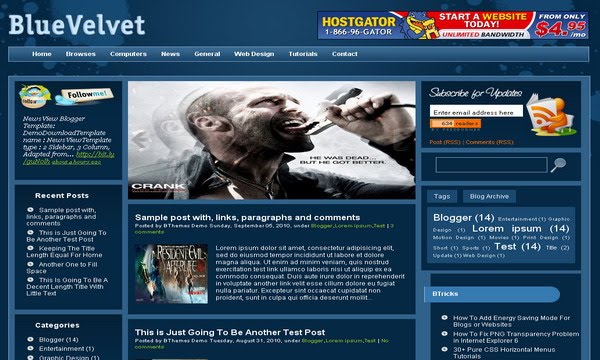
Blue Velvet Blogger Template

Blue Velvet Blogger Template


Template name : TheGreyMac

Template type : 2 Sidebar, 3 Column, 3 Column footer, Adapted from Wordpress, Blue, Elegant, Featured Section, Fixed width, Header Banner, Left Sidebar, Magazine, Premium, Right Sidebar, Rounded corners, Slider, Tabbed widget, Top Navigation Bar, Web 2.0

Release date : December 19, 2010

Coder/Designer Name(s) : Lasantha Bandara / CamelGraph

Coder/Designer URL(s) : http://www.premiumbloggertemplates.com/
http://camelgraph.com/

Basic Instructions : How to install a Blogger template

Advanced Details : http://www.premiumbloggertemplates.com/2010/12/blue-velvet-premium-blogger-template.html


Configure Meta tags

Login to your blogger dashboard--> layout- -> Edit HTML.Now Scroll down to where you see below codes :

<meta content='DESCRIPTION HERE' name='description'/>
<meta content='KEYWORDS HERE' name='keywords'/>

Replace DESCRIPTION HERE,KEYWORDS HERE as below.

DESCRIPTION HERE:Write your blog description
KEYWORDS HERE:Write the keywords of your blog separated by comma.

How To Configure Favicon:

Login to your blogger dashboard--> layout- -> Edit HTML.Now Scroll down to where you see below code :

<link href='YOUR-FAVICON-URL' rel='shortcut icon' type='image/vnd.microsoft.icon'/>

Now replace "YOUR-FAVICON-URL" with your Favicon address/url.


How To Setup Subscription Box

Login to your blogger dashboard--> layout- -> Edit HTML.Now find "pbtemplates". You can find it several times.Replace these with your real Feedburner ID.


How To Setup Twitter Widget

Login to your blogger dashboard--> layout- -> Edit HTML.Now find this:

<script src='http://twitter.com/statuses/user_timeline/pbtemplates.json?callback=twitterCallback2&amp;count=1' type='text/javascript'/>


Replace "pbtemplates" with your Twitter Username.

Configure Featured Content Slider:

Login to your blogger dashboard--> layout- -> Edit HTML.Find <!-- Featured Content Slider Started -->.Now scroll down slowly and you can see each featured slider codes between <div class='imageElement'> and </div> .

Now replace,

"This is featured post X title" with your featured post title.
"SLIDER-X-URL-HERE" with your featured post URL.
Slider description with your slider description.
Slider image with your slider image.

for each featured slider.

How To Add a Header Logo

You can add a header logo for this template easily in the "Page Elements" section(Blogger Default Method).Logo image size must be 275px width and 60px height.

If you have any problem regrading this template,leave a comment below.

Important !!!:

Please do not remove the footer credit. I spend several hours to create this blogger template. So that you can use it for your blog. All I ask is, stay the credit intact.

License:

This free Blogger template is licensed under the Creative Commons Attribution 3.0 License,which permits both personal and commercial use.
However, to satisfy the 'attribution' clause of the license, you are required to keep the footer links intact which provides due credit to its authors. For more specific details about the license, you may visit the URL below:
http://creativecommons.org/licenses/by/3.0/

Saturday, December 18, 2010

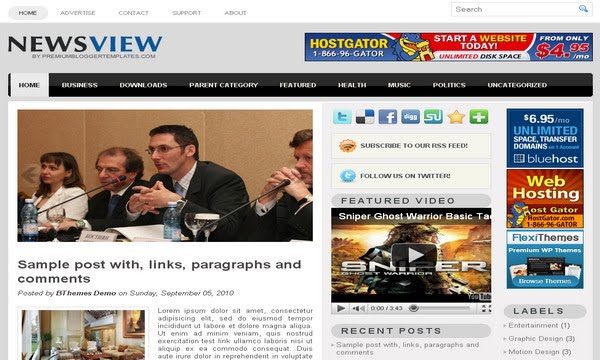
NewsView Blogger Template

NewsView Blogger Template


Template name : NewsView

Template type : 2 Sidebar, 3 Column, Adapted from Wordpress, Featured Section, Fixed width, Grey, Header Banner, Magazine, Right Sidebar, Rounded corners, Slider, Top Navigation Bar, Web 2.0, White

Release date : December 19, 2010

Coder/Designer Name(s) : Lasantha Bandara / New WP Themes

Coder/Designer URL(s) : http://www.premiumbloggertemplates.com/
http://newwpthemes.com/

Basic Instructions : How to install a Blogger template

Advanced Details : http://www.premiumbloggertemplates.com/2010/12/newsview-blogger-template.html


Configure Meta tags

Login to your blogger dashboard--> layout- -> Edit HTML.Now Scroll down to where you see below codes :

<meta content='DESCRIPTION HERE' name='description'/>
<meta content='KEYWORDS HERE' name='keywords'/>

Replace DESCRIPTION HERE,KEYWORDS HERE as below.

DESCRIPTION HERE:Write your blog description
KEYWORDS HERE:Write the keywords of your blog separated by comma.

How To Configure Favicon:

Login to your blogger dashboard--> layout- -> Edit HTML.Now Scroll down to where you see below code :

<link href='YOUR-FAVICON-URL' rel='shortcut icon' type='image/vnd.microsoft.icon'/>

Now replace "YOUR-FAVICON-URL" with your Favicon address/url.


Configure Featured Content Slider:

Login to your blogger dashboard--> layout- -> Edit HTML.Find <!-- Featured Content Slider Started -->.Now scroll down slowly and you can see each featured slider codes between <div class='imageElement'> and </div> .

Now replace,

"This is featured post X title" with your featured post title.
"SLIDER-X-URL-HERE" with your featured post URL.
Slider description with your slider description.
Slider image with your slider image.

for each featured slider.

How To Add a Header Logo

You can add a header logo for this template easily in the "Page Elements" section(Blogger Default Method).Logo image size must be 253px width and 49px height.

If you have any problem regrading this template,leave a comment below.

Important !!!:

Please do not remove the footer credit. I spend several hours to create this blogger template. So that you can use it for your blog. All I ask is, stay the credit intact.

License:

This free Blogger template is licensed under the Creative Commons Attribution 3.0 License,which permits both personal and commercial use.
However, to satisfy the 'attribution' clause of the license, you are required to keep the footer links intact which provides due credit to its authors. For more specific details about the license, you may visit the URL below:
http://creativecommons.org/licenses/by/3.0/
TheGreyMac Blogger Template

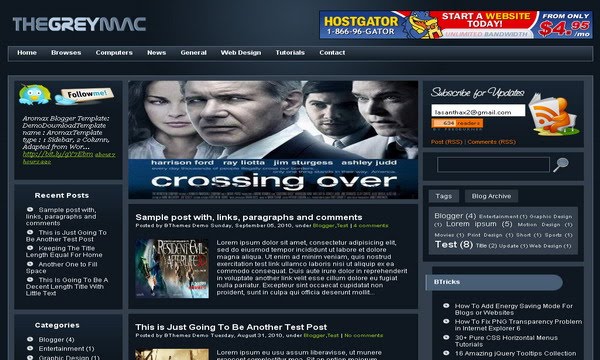
TheGreyMac Blogger Template


Template name : TheGreyMac

Template type : 2 Sidebar, 3 Column, 3 Column footer, Adapted from Wordpress, Black, Blue, Elegant, Featured Section, Fixed width, Header Banner, Left Sidebar, Magazine, Premium, Right Sidebar, Rounded corners, Slider, Top Navigation Bar, Tabbed widget, Web 2.0

Release date : December 18, 2010

Coder/Designer Name(s) : Lasantha Bandara / CamelGraph

Coder/Designer URL(s) : http://www.premiumbloggertemplates.com/
http://camelgraph.com/

Basic Instructions : How to install a Blogger template

Advanced Details : http://www.premiumbloggertemplates.com/2010/12/thegreymac-premium-blogger-template.html


Configure Meta tags

Login to your blogger dashboard--> layout- -> Edit HTML.Now Scroll down to where you see below codes :

<meta content='DESCRIPTION HERE' name='description'/>
<meta content='KEYWORDS HERE' name='keywords'/>

Replace DESCRIPTION HERE,KEYWORDS HERE as below.

DESCRIPTION HERE:Write your blog description
KEYWORDS HERE:Write the keywords of your blog separated by comma.

How To Configure Favicon:

Login to your blogger dashboard--> layout- -> Edit HTML.Now Scroll down to where you see below code :

<link href='YOUR-FAVICON-URL' rel='shortcut icon' type='image/vnd.microsoft.icon'/>

Now replace "YOUR-FAVICON-URL" with your Favicon address/url.


How To Setup Subscription Box

Login to your blogger dashboard--> layout- -> Edit HTML.Now find "pbtemplates". You can find it several times.Replace these with your real Feedburner ID.


How To Setup Twitter Widget

Login to your blogger dashboard--> layout- -> Edit HTML.Now find this:

<script src='http://twitter.com/statuses/user_timeline/pbtemplates.json?callback=twitterCallback2&amp;count=1' type='text/javascript'/>


Replace "pbtemplates" with your Twitter Username.

Configure Featured Content Slider:

Login to your blogger dashboard--> layout- -> Edit HTML.Find <!-- Featured Content Slider Started -->.Now scroll down slowly and you can see each featured slider codes between <div class='imageElement'> and </div> .

Now replace,

"This is featured post X title" with your featured post title.
"SLIDER-X-URL-HERE" with your featured post URL.
Slider description with your slider description.
Slider image with your slider image.

for each featured slider.

How To Add a Header Logo

You can add a header logo for this template easily in the "Page Elements" section(Blogger Default Method).Logo image size must be 275px width and 60px height.

If you have any problem regrading this template,leave a comment below.

Important !!!:

Please do not remove the footer credit. I spend several hours to create this blogger template. So that you can use it for your blog. All I ask is, stay the credit intact.

License:

This free Blogger template is licensed under the Creative Commons Attribution 3.0 License,which permits both personal and commercial use.
However, to satisfy the 'attribution' clause of the license, you are required to keep the footer links intact which provides due credit to its authors. For more specific details about the license, you may visit the URL below:
http://creativecommons.org/licenses/by/3.0/

Sunday, December 5, 2010

Movies Time Blogger Template

Movies Time Blogger Template


Template name : Movies Time

Template type : 2 Sidebar, 3 Column, Adapted from Wordpress, Black, Featured Section, Fixed width, Header Banner, Left Sidebar, Magazine, Right Sidebar, Slider, Top Navigation Bar, Web 2.0, Yellow

Release date : December 5, 2010

Coder/Designer Name(s) : Lasantha Bandara / New WP Themes

Coder/Designer URL(s) : http://www.premiumbloggertemplates.com/
http://newwpthemes.com/

Basic Instructions : How to install a Blogger template

Advanced Details : http://www.premiumbloggertemplates.com/2010/12/movies-time-blogger-template.html


Configure Meta tags

Login to your blogger dashboard--> layout- -> Edit HTML.Now Scroll down to where you see below codes :

<meta content='DESCRIPTION HERE' name='description'/>
<meta content='KEYWORDS HERE' name='keywords'/>

Replace DESCRIPTION HERE,KEYWORDS HERE as below.

DESCRIPTION HERE:Write your blog description
KEYWORDS HERE:Write the keywords of your blog separated by comma.

How To Configure Favicon:

Login to your blogger dashboard--> layout- -> Edit HTML.Now Scroll down to where you see below code :

<link href='YOUR-FAVICON-URL' rel='shortcut icon' type='image/vnd.microsoft.icon'/>

Now replace "YOUR-FAVICON-URL" with your Favicon address/url.


Configure Featured Content Slider:

Login to your blogger dashboard--> layout- -> Edit HTML.Find <!-- Featured Content Slider Started -->.Now scroll down slowly and you can see each featured slider codes between <div class='imageElement'> and </div> .

Now replace,

"This is featured post X title" with your featured post title.
"SLIDER-X-URL-HERE" with your featured post title.
Slider description with your slider description.
Slider image with your slider image.

for each featured slider.

How To Add a Header Logo

You can add a header logo for this template easily in the "Page Elements" section(Blogger Default Method).Logo image size must be 367px width and 48px height.

If you have any problem regrading this template,leave a comment below.

Important !!!:

Please do not remove the footer credit. I spend several hours to create this blogger template. So that you can use it for your blog. All I ask is, stay the credit intact.

License:

This free Blogger template is licensed under the Creative Commons Attribution 3.0 License,which permits both personal and commercial use.
However, to satisfy the 'attribution' clause of the license, you are required to keep the footer links intact which provides due credit to its authors. For more specific details about the license, you may visit the URL below:
http://creativecommons.org/licenses/by/3.0/

Saturday, December 4, 2010

Karizma Blogger Template

Karizma Blogger Template


Template name : Karizma

Template type : 2 Sidebar, 3 Column, Adapted from Wordpress, Elegant, Featured Section, Fixed width, Header Banner, Magazine, Right Sidebar, Slider, Top Navigation Bar, Web 2.0, White

Release date : December 4, 2010

Coder/Designer Name(s) : Lasantha Bandara / New WP Themes

Coder/Designer URL(s) : http://www.premiumbloggertemplates.com/
http://newwpthemes.com/

Basic Instructions : How to install a Blogger template

Advanced Details : http://www.premiumbloggertemplates.com/2010/12/karizma-blogger-template.html


Configure Meta tags

Login to your blogger dashboard--> layout- -> Edit HTML.Now Scroll down to where you see below codes :

<meta content='DESCRIPTION HERE' name='description'/>
<meta content='KEYWORDS HERE' name='keywords'/>

Replace DESCRIPTION HERE,KEYWORDS HERE as below.

DESCRIPTION HERE:Write your blog description
KEYWORDS HERE:Write the keywords of your blog separated by comma.

How To Configure Favicon:

Login to your blogger dashboard--> layout- -> Edit HTML.Now Scroll down to where you see below code :

<link href='YOUR-FAVICON-URL' rel='shortcut icon' type='image/vnd.microsoft.icon'/>

Now replace "YOUR-FAVICON-URL" with your Favicon address/url.


Configure Featured Content Slider:

Login to your blogger dashboard--> layout- -> Edit HTML.Find <!-- Featured Content Slider Started -->.Now scroll down slowly and you can see each featured slider codes between <div class='imageElement'> and </div> .

Now replace,

"This is featured post X title" with your featured post title.
"SLIDER-X-URL-HERE" with your featured post title.
Slider description with your slider description.
Slider image with your slider image.

for each featured slider.

How To Add a Header Logo

You can add a header logo for this template easily in the "Page Elements" section(Blogger Default Method).Logo image size must be 274px width and 57px height.

If you have any problem regrading this template,leave a comment below.

Important !!!:

Please do not remove the footer credit. I spend several hours to create this blogger template. So that you can use it for your blog. All I ask is, stay the credit intact.

License:

This free Blogger template is licensed under the Creative Commons Attribution 3.0 License,which permits both personal and commercial use.
However, to satisfy the 'attribution' clause of the license, you are required to keep the footer links intact which provides due credit to its authors. For more specific details about the license, you may visit the URL below:
http://creativecommons.org/licenses/by/3.0/
Saturday, November 27, 2010

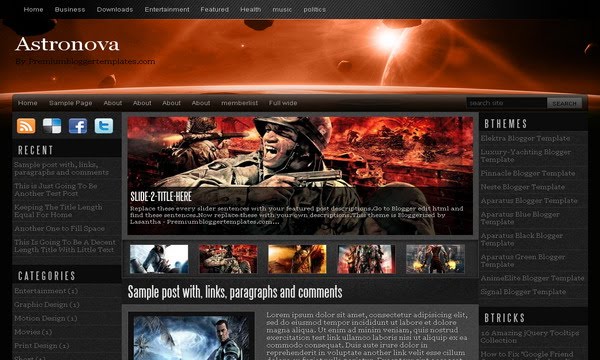
Astronova Blogger Template

Astronova Blogger Template


Template name : Astronova

Template type : 2 Sidebar, 3 Column, Adapted from Wordpress, Black, Featured Section, Fixed width, Left Sidebar, Magazine, Orange, Premium, Right Sidebar, Slider, Top Navigation Bar, Web 2.0

Release date : November 27, 2010

Coder/Designer Name(s) : Lasantha Bandara / Web2feel

Coder/Designer URL(s) : http://www.premiumbloggertemplates.com/
http://www.web2feel.com/

Basic Instructions : How to install a Blogger template

Advanced Details : http://www.premiumbloggertemplates.com/2010/11/astronova-premium-blogger-template.html


Configure Meta tags

Login to your blogger dashboard--> layout- -> Edit HTML.Now Scroll down to where you see below codes :

<meta content='DESCRIPTION HERE' name='description'/>
<meta content='KEYWORDS HERE' name='keywords'/>

Replace DESCRIPTION HERE,KEYWORDS HERE as below.

DESCRIPTION HERE:Write your blog description
KEYWORDS HERE:Write the keywords of your blog separated by comma.

How To Configure Favicon:

Login to your blogger dashboard--> layout- -> Edit HTML.Now Scroll down to where you see below code :

<link href='YOUR-FAVICON-URL' rel='shortcut icon' type='image/vnd.microsoft.icon'/>

Now replace "YOUR-FAVICON-URL" with your Favicon address/url.


Configure Featured Content Slider:

Instruction Will be Available Soon.

If you have any problem regrading this template,leave a comment below.

Important !!!:

Please do not remove the footer credit. I spend several hours to create this blogger template. So that you can use it for your blog. All I ask is, stay the credit intact.

License:

This free Blogger template is licensed under the Creative Commons Attribution 3.0 License,which permits both personal and commercial use.
However, to satisfy the 'attribution' clause of the license, you are required to keep the footer links intact which provides due credit to its authors. For more specific details about the license, you may visit the URL below:
http://creativecommons.org/licenses/by/3.0/
Tuesday, November 23, 2010

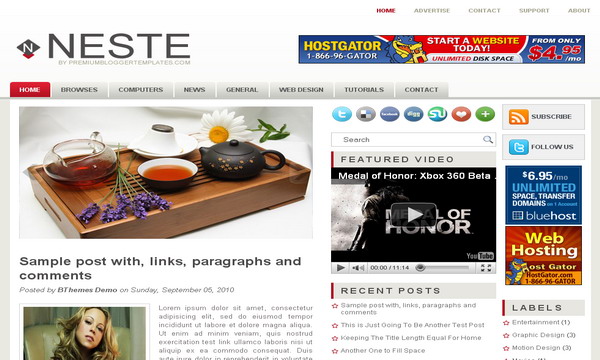
Neste Blogger Template

Neste Blogger Template


Template name : Neste

Template type : 2 Sidebar, 3 Column, Adapted from Wordpress, Featured Section, Fixed width, Header Banner, Magazine, Right Sidebar, Rounded corners, Slider, Top Navigation Bar, Web 2.0, White

Release date : November 23, 2010

Coder/Designer Name(s) : Lasantha Bandara / New WP Themes

Coder/Designer URL(s) : http://www.premiumbloggertemplates.com/
http://newwpthemes.com/

Basic Instructions : How to install a Blogger template

Advanced Details : http://www.premiumbloggertemplates.com/2010/11/neste-blogger-template.html


Configure Meta tags

Login to your blogger dashboard--> layout- -> Edit HTML.Now Scroll down to where you see below codes :

<meta content='DESCRIPTION HERE' name='description'/>
<meta content='KEYWORDS HERE' name='keywords'/>

Replace DESCRIPTION HERE,KEYWORDS HERE as below.

DESCRIPTION HERE:Write your blog description
KEYWORDS HERE:Write the keywords of your blog separated by comma.

How To Configure Favicon:

Login to your blogger dashboard--> layout- -> Edit HTML.Now Scroll down to where you see below code :

<link href='YOUR-FAVICON-URL' rel='shortcut icon' type='image/vnd.microsoft.icon'/>

Now replace "YOUR-FAVICON-URL" with your Favicon address/url.


Configure Featured Content Slider:

Login to your blogger dashboard--> layout- -> Edit HTML.Find <!-- Featured Content Slider Started -->.Now scroll down slowly and you can see each featured slider codes between <div class='imageElement'> and </div> .

Now replace,

"This is featured post X title" with your featured post title.
"SLIDER-X-URL-HERE" with your featured post title.
Slider description with your slider description.
Slider image with your slider image.

for each featured slider.

How To Add a Header Logo

You can add a header logo for this template easily in the "Page Elements" section(Blogger Default Method).Logo image size must be 286px width and 68px height.

If you have any problem regrading this template,leave a comment below.

Important !!!:

Please do not remove the footer credit. I spend several hours to create this blogger template. So that you can use it for your blog. All I ask is, stay the credit intact.

License:

This free Blogger template is licensed under the Creative Commons Attribution 3.0 License,which permits both personal and commercial use.
However, to satisfy the 'attribution' clause of the license, you are required to keep the footer links intact which provides due credit to its authors. For more specific details about the license, you may visit the URL below:
http://creativecommons.org/licenses/by/3.0/

Sunday, November 21, 2010

Signal Blogger Template

Signal Blogger Template


Template name : Signal

Template type : 2 Sidebar, 3 Column, Adapted from Wordpress, Black, Featured Section, Fixed width, Header Banner, Magazine, Right Sidebar, Slider, Top Navigation Bar, Web 2.0, Pink

Release date : November 22, 2010

Coder/Designer Name(s) : Lasantha Bandara / New WP Themes

Coder/Designer URL(s) : http://www.premiumbloggertemplates.com/
http://newwpthemes.com/

Basic Instructions : How to install a Blogger template

Advanced Details : http://www.premiumbloggertemplates.com/2010/11/signal-blogger-template.html


Configure Meta tags

Login to your blogger dashboard--> layout- -> Edit HTML.Now Scroll down to where you see below codes :

<meta content='DESCRIPTION HERE' name='description'/>
<meta content='KEYWORDS HERE' name='keywords'/>

Replace DESCRIPTION HERE,KEYWORDS HERE as below.

DESCRIPTION HERE:Write your blog description
KEYWORDS HERE:Write the keywords of your blog separated by comma.

How To Configure Favicon:

Login to your blogger dashboard--> layout- -> Edit HTML.Now Scroll down to where you see below code :

<link href='YOUR-FAVICON-URL' rel='shortcut icon' type='image/vnd.microsoft.icon'/>

Now replace "YOUR-FAVICON-URL" with your Favicon address/url.


Configure Featured Content Slider:

Login to your blogger dashboard--> layout- -> Edit HTML.Find <!-- Featured Content Slider Started -->.Now scroll down slowly and you can see each featured slider codes between <div class='imageElement'> and </div> .

Now replace,

"This is featured post X title" with your featured post title.
"SLIDER-X-URL-HERE" with your featured post title.
Slider description with your slider description.
Slider image with your slider image.

for each featured slider.

How To Add a Header Logo

You can add a header logo for this template easily in the "Page Elements" section(Blogger Default Method).Logo image size must be 221px width and 82px height.

If you have any problem regrading this template,leave a comment below.

Important !!!:

Please do not remove the footer credit. I spend several hours to create this blogger template. So that you can use it for your blog. All I ask is, stay the credit intact.

License:

This free Blogger template is licensed under the Creative Commons Attribution 3.0 License,which permits both personal and commercial use.
However, to satisfy the 'attribution' clause of the license, you are required to keep the footer links intact which provides due credit to its authors. For more specific details about the license, you may visit the URL below:
http://creativecommons.org/licenses/by/3.0/

Saturday, November 20, 2010

Arena Blogger Template

Arena Blogger Template


Template name : Arena

Template type : 2 Sidebar, 3 Column, Adapted from Wordpress, Black, Featured Section, Fixed width, Header Banner, Magazine, Right Sidebar, Slider, Top Navigation Bar, Web 2.0, White

Release date : November 21, 2010

Coder/Designer Name(s) : Lasantha Bandara / New WP Themes

Coder/Designer URL(s) : http://www.premiumbloggertemplates.com/
http://newwpthemes.com/

Basic Instructions : How to install a Blogger template

Advanced Details : http://www.premiumbloggertemplates.com/2010/11/arena-blogger-template.html


Configure Meta tags

Login to your blogger dashboard--> layout- -> Edit HTML.Now Scroll down to where you see below codes :

<meta content='DESCRIPTION HERE' name='description'/>
<meta content='KEYWORDS HERE' name='keywords'/>

Replace DESCRIPTION HERE,KEYWORDS HERE as below.

DESCRIPTION HERE:Write your blog description
KEYWORDS HERE:Write the keywords of your blog separated by comma.

How To Configure Favicon:

Login to your blogger dashboard--> layout- -> Edit HTML.Now Scroll down to where you see below code :

<link href='YOUR-FAVICON-URL' rel='shortcut icon' type='image/vnd.microsoft.icon'/>

Now replace "YOUR-FAVICON-URL" with your Favicon address/url.


Configure Featured Content Slider:

Login to your blogger dashboard--> layout- -> Edit HTML.Find <!-- Featured Content Slider Started -->.Now scroll down slowly and you can see each featured slider codes between <div class='imageElement'> and </div> .

Now replace,

"This is featured post X title" with your featured post title.
"SLIDER-X-URL-HERE" with your featured post title.
Slider description with your slider description.
Slider image with your slider image.

for each featured slider.

How To Add a Header Logo

You can add a header logo for this template easily in the "Page Elements" section(Blogger Default Method).Logo image size must be 209px width and 61px height.

If you have any problem regrading this template,leave a comment below.

Important !!!:

Please do not remove the footer credit. I spend several hours to create this blogger template. So that you can use it for your blog. All I ask is, stay the credit intact.

License:

This free Blogger template is licensed under the Creative Commons Attribution 3.0 License,which permits both personal and commercial use.
However, to satisfy the 'attribution' clause of the license, you are required to keep the footer links intact which provides due credit to its authors. For more specific details about the license, you may visit the URL below:
http://creativecommons.org/licenses/by/3.0/

Monday, November 8, 2010

Akler Blogger Template

Akler Blogger Template


Template name : Akler

Template type : 2 Sidebar, 3 Column, Adapted from Wordpress, Brown, Featured Section, Fixed width, Header Banner, Magazine, Right Sidebar, Rounded corners, Slider, Top Navigation Bar, Web 2.0

Release date : November 8, 2010

Coder/Designer Name(s) : Lasantha Bandara / New WP Themes

Coder/Designer URL(s) : http://www.premiumbloggertemplates.com/
http://newwpthemes.com/

Basic Instructions : How to install a Blogger template

Advanced Details : http://www.premiumbloggertemplates.com/2010/11/akler-blogger-template.html


Configure Meta tags

Login to your blogger dashboard--> layout- -> Edit HTML.Now Scroll down to where you see below codes :

<meta content='DESCRIPTION HERE' name='description'/>
<meta content='KEYWORDS HERE' name='keywords'/>

Replace DESCRIPTION HERE,KEYWORDS HERE as below.

DESCRIPTION HERE:Write your blog description
KEYWORDS HERE:Write the keywords of your blog separated by comma.

How To Configure Favicon:

Login to your blogger dashboard--> layout- -> Edit HTML.Now Scroll down to where you see below code :

<link href='YOUR-FAVICON-URL' rel='shortcut icon' type='image/vnd.microsoft.icon'/>

Now replace "YOUR-FAVICON-URL" with your Favicon address/url.


Configure Featured Content Slider:

Login to your blogger dashboard--> layout- -> Edit HTML.Find <!-- Featured Content Slider Started -->.Now scroll down slowly and you can see each featured slider codes between <div class='imageElement'> and </div> .

Now replace,

"This is featured post X title" with your featured post title.
"SLIDER-X-URL-HERE" with your featured post title.
Slider description with your slider description.
Slider image with your slider image.

for each featured slider.

How To Add a Header Logo

You can add a header logo for this template easily in the "Page Elements" section(Blogger Default Method).Logo image size must be 357px width and 75px height.

If you have any problem regrading this template,leave a comment below.

Important !!!:

Please do not remove the footer credit. I spend several hours to create this blogger template. So that you can use it for your blog. All I ask is, stay the credit intact.

License:

This free Blogger template is licensed under the Creative Commons Attribution 3.0 License,which permits both personal and commercial use.
However, to satisfy the 'attribution' clause of the license, you are required to keep the footer links intact which provides due credit to its authors. For more specific details about the license, you may visit the URL below:
http://creativecommons.org/licenses/by/3.0/

Monday, November 1, 2010

StartGame Blogger Template

StartGame Blogger Template


Template name : StartGame

Template type : 2 Sidebar, 3 Column, Adapted from Wordpress, Black, Elegant, Featured Section, Fixed width, Header Banner, Magazine, Right Sidebar, Slider, Top Navigation Bar, Video, Web 2.0

Release date : November 1, 2010

Coder/Designer Name(s) : Lasantha Bandara / New WP Themes

Coder/Designer URL(s) : http://www.premiumbloggertemplates.com/
http://newwpthemes.com/

Basic Instructions : How to install a Blogger template

Advanced Details : http://www.premiumbloggertemplates.com/2010/11/startgame-blogger-template.html


Configure Meta tags

Login to your blogger dashboard--> layout- -> Edit HTML.Now Scroll down to where you see below codes :

<meta content='DESCRIPTION HERE' name='description'/>
<meta content='KEYWORDS HERE' name='keywords'/>

Replace DESCRIPTION HERE,KEYWORDS HERE as below.

DESCRIPTION HERE:Write your blog description
KEYWORDS HERE:Write the keywords of your blog separated by comma.

How To Configure Favicon:

Login to your blogger dashboard--> layout- -> Edit HTML.Now Scroll down to where you see below code :

<link href='YOUR-FAVICON-URL' rel='shortcut icon' type='image/vnd.microsoft.icon'/>

Now replace "YOUR-FAVICON-URL" with your Favicon address/url.


Configure Featured Content Slider:

Login to your blogger dashboard--> layout- -> Edit HTML.Find <!-- Featured Content Slider Started -->.Now scroll down slowly and you can see each featured slider codes between <div class='imageElement'> and </div> .

Now replace,

"This is featured post X title" with your featured post title.
"SLIDER-X-URL-HERE" with your featured post title.
Slider description with your slider description.
Slider image with your slider image.

for each featured slider.

How To Add a Header Logo

You can add a header logo for this template easily in the "Page Elements" section(Blogger Default Method).Logo image size must be 404px width and 60px height.

If you have any problem regrading this template,leave a comment below.

Important !!!:

Please do not remove the footer credit. I spend several hours to create this blogger template. So that you can use it for your blog. All I ask is, stay the credit intact.

License:

This free Blogger template is licensed under the Creative Commons Attribution 3.0 License,which permits both personal and commercial use.
However, to satisfy the 'attribution' clause of the license, you are required to keep the footer links intact which provides due credit to its authors. For more specific details about the license, you may visit the URL below:
http://creativecommons.org/licenses/by/3.0/

Sunday, October 31, 2010

Bionex Blogger Template

Bionex Blogger Template


Template name : Bionex

Template type : 2 Sidebar, 3 Column, Adapted from Wordpress, Black, Featured Section, Fixed width, Grey, Header Banner, Left Sidebar, Magazine, Right Sidebar, Slider, Top Navigation Bar, Web 2.0

Release date : November 1, 2010

Coder/Designer Name(s) : Lasantha Bandara / New WP Themes

Coder/Designer URL(s) : http://www.premiumbloggertemplates.com/
http://newwpthemes.com/

Basic Instructions : How to install a Blogger template

Advanced Details : http://www.premiumbloggertemplates.com/2010/10/bionex-blogger-template.html


Configure Meta tags

Login to your blogger dashboard--> layout- -> Edit HTML.Now Scroll down to where you see below codes :

<meta content='DESCRIPTION HERE' name='description'/>
<meta content='KEYWORDS HERE' name='keywords'/>

Replace DESCRIPTION HERE,KEYWORDS HERE as below.

DESCRIPTION HERE:Write your blog description
KEYWORDS HERE:Write the keywords of your blog separated by comma.

How To Configure Favicon:

Login to your blogger dashboard--> layout- -> Edit HTML.Now Scroll down to where you see below code :

<link href='YOUR-FAVICON-URL' rel='shortcut icon' type='image/vnd.microsoft.icon'/>

Now replace "YOUR-FAVICON-URL" with your Favicon address/url.


Configure Featured Content Slider:

Login to your blogger dashboard--> layout- -> Edit HTML.Find <!-- Featured Content Slider Started -->.Now scroll down slowly and you can see each featured slider codes between <div class='imageElement'> and </div> .

Now replace,

"This is featured post X title" with your featured post title.
"SLIDER-X-URL-HERE" with your featured post title.
Slider description with your slider description.
Slider image with your slider image.

for each featured slider.

How To Add a Header Logo

You can add a header logo for this template easily in the "Page Elements" section(Blogger Default Method).Logo image size must be 246px width and 66px height.

If you have any problem regrading this template,leave a comment below.

Important !!!:

Please do not remove the footer credit. I spend several hours to create this blogger template. So that you can use it for your blog. All I ask is, stay the credit intact.

License:

This free Blogger template is licensed under the Creative Commons Attribution 3.0 License,which permits both personal and commercial use.
However, to satisfy the 'attribution' clause of the license, you are required to keep the footer links intact which provides due credit to its authors. For more specific details about the license, you may visit the URL below:
http://creativecommons.org/licenses/by/3.0/

Daily Press Blogger Template

Daily Press Blogger Template


Template name : Daily Press

Template type : 2 Sidebar, 3 Column, Adapted from Wordpress, Brown, Elegant, Fixed width, Right Sidebar, Tabbed widget, Top Navigation Bar, Video, Yellow

Release date : October 31, 2010

Coder/Designer Name(s) : Lasantha Bandara / Blog Oh! Blog

Coder/Designer URL(s) : http://www.premiumbloggertemplates.com/
http://www.blogohblog.com/

Basic Instructions : How to install a Blogger template

Advanced Details : http://www.premiumbloggertemplates.com/2010/10/daily-press-blogger-template.html


Configure Meta tags

Login to your blogger dashboard--> layout- -> Edit HTML.Now Scroll down to where you see below codes :

<meta content='DESCRIPTION HERE' name='description'/>
<meta content='KEYWORDS HERE' name='keywords'/>

Replace DESCRIPTION HERE,KEYWORDS HERE as below.

DESCRIPTION HERE:Write your blog description
KEYWORDS HERE:Write the keywords of your blog separated by comma.

How To Configure Favicon:

Login to your blogger dashboard--> layout- -> Edit HTML.Now Scroll down to where you see below code :

<link href='YOUR-FAVICON-URL' rel='shortcut icon' type='image/vnd.microsoft.icon'/>

Now replace "YOUR-FAVICON-URL" with your Favicon address/url.


How To Change Tab Names


Login to your blogger dashboard--> layout- -> Edit HTML.Now Scroll down to where you see below codes :

<h2>Featured Video</h2>

<h2>Browse Categories</h2>

<h2>Blog Archives</h2>

Change the words Featured Video, Browse Categories, Blog Archives as you like.


How To Add a Header Logo

You can add a header logo for this template easily in the "Page Elements" section(Blogger Default Method).Logo image size must be 231px width and 58px height.

If you have any problem regrading this template,leave a comment below.

Important !!!:

Please do not remove the footer credit. I spend several hours to create this blogger template. So that you can use it for your blog. All I ask is, stay the credit intact.

License:

This free Blogger template is licensed under the Creative Commons Attribution 3.0 License,which permits both personal and commercial use.
However, to satisfy the 'attribution' clause of the license, you are required to keep the footer links intact which provides due credit to its authors. For more specific details about the license, you may visit the URL below:
http://creativecommons.org/licenses/by/3.0/

Friday, October 29, 2010

Praven Blogger Template

Praven Blogger Template


Template name : Praven

Template type : 2 Sidebar, 3 Column, Adapted from Wordpress, Black, Featured Section, Fixed width, Green, Header Banner, Left Sidebar, Magazine, Right Sidebar, Slider, Top Navigation Bar, Web 2.0, White

Release date : October 30, 2010

Coder/Designer Name(s) : Lasantha Bandara / New WP Themes

Coder/Designer URL(s) : http://www.premiumbloggertemplates.com/
http://newwpthemes.com/

Basic Instructions : How to install a Blogger template

Advanced Details : http://www.premiumbloggertemplates.com/2010/10/praven-blogger-template.html


Configure Meta tags

Login to your blogger dashboard--> layout- -> Edit HTML.Now Scroll down to where you see below codes :

<meta content='DESCRIPTION HERE' name='description'/>
<meta content='KEYWORDS HERE' name='keywords'/>

Replace DESCRIPTION HERE,KEYWORDS HERE as below.

DESCRIPTION HERE:Write your blog description
KEYWORDS HERE:Write the keywords of your blog separated by comma.

How To Configure Favicon:

Login to your blogger dashboard--> layout- -> Edit HTML.Now Scroll down to where you see below code :

<link href='YOUR-FAVICON-URL' rel='shortcut icon' type='image/vnd.microsoft.icon'/>

Now replace "YOUR-FAVICON-URL" with your Favicon address/url.


Configure Featured Content Slider:

Login to your blogger dashboard--> layout- -> Edit HTML.Find <!-- Featured Content Slider Started -->.Now scroll down slowly and you can see each featured slider codes between <div class='imageElement'> and </div> .

Now replace,

"This is featured post X title" with your featured post title.
"SLIDER-X-URL-HERE" with your featured post title.
Slider description with your slider description.
Slider image with your slider image.

for each featured slider.

How To Add a Header Logo

You can add a header logo for this template easily in the "Page Elements" section(Blogger Default Method).Logo image size must be 276px width and 65px height.

If you have any problem regrading this template,leave a comment below.

Important !!!:

Please do not remove the footer credit. I spend several hours to create this blogger template. So that you can use it for your blog. All I ask is, stay the credit intact.

License:

This free Blogger template is licensed under the Creative Commons Attribution 3.0 License,which permits both personal and commercial use.
However, to satisfy the 'attribution' clause of the license, you are required to keep the footer links intact which provides due credit to its authors. For more specific details about the license, you may visit the URL below:
http://creativecommons.org/licenses/by/3.0/

Everest Blogger Template

Everest Blogger Template


Template name : Everest

Template type : 2 Sidebar, 3 Column, Adapted from Wordpress, Blue, Elegant, Featured Section, Fixed width, Header Banner, Magazine, Right Sidebar, Rounded corners, Slider, Top Navigation Bar, Web 2.0

Release date : October 30, 2010

Coder/Designer Name(s) : Lasantha Bandara / New WP Themes

Coder/Designer URL(s) : http://www.premiumbloggertemplates.com/
http://newwpthemes.com/

Basic Instructions : How to install a Blogger template

Advanced Details : http://www.premiumbloggertemplates.com/2010/10/everest-blogger-template.html


Configure Meta tags

Login to your blogger dashboard--> layout- -> Edit HTML.Now Scroll down to where you see below codes :

<meta content='DESCRIPTION HERE' name='description'/>
<meta content='KEYWORDS HERE' name='keywords'/>

Replace DESCRIPTION HERE,KEYWORDS HERE as below.

DESCRIPTION HERE:Write your blog description
KEYWORDS HERE:Write the keywords of your blog separated by comma.

How To Configure Favicon:

Login to your blogger dashboard--> layout- -> Edit HTML.Now Scroll down to where you see below code :

<link href='YOUR-FAVICON-URL' rel='shortcut icon' type='image/vnd.microsoft.icon'/>

Now replace "YOUR-FAVICON-URL" with your Favicon address/url.


Configure Featured Content Slider:

Login to your blogger dashboard--> layout- -> Edit HTML.Find <!-- Featured Content Slider Started -->.Now scroll down slowly and you can see each featured slider codes between <div class='imageElement'> and </div> .

Now replace,

"This is featured post X title" with your featured post title.
"SLIDER-X-URL-HERE" with your featured post title.
Slider description with your slider description.
Slider image with your slider image.

for each featured slider.

How To Add a Header Logo

You can add a header logo for this template easily in the "Page Elements" section(Blogger Default Method).Logo image size must be 410px width and 68px height.

If you have any problem regrading this template,leave a comment below.

Important !!!:

Please do not remove the footer credit. I spend several hours to create this blogger template. So that you can use it for your blog. All I ask is, stay the credit intact.

License:

This free Blogger template is licensed under the Creative Commons Attribution 3.0 License,which permits both personal and commercial use.
However, to satisfy the 'attribution' clause of the license, you are required to keep the footer links intact which provides due credit to its authors. For more specific details about the license, you may visit the URL below:
http://creativecommons.org/licenses/by/3.0/

Demet Blogger Template

Demet Blogger Template


Template name : Demet

Template type : 2 Sidebar, 3 Column, Adapted from Wordpress, Featured Section, Fixed width, Grey, Header Banner, Left Sidebar, Magazine, Right Sidebar, Rounded corners, Slider, Top Navigation Bar, White

Release date : October 29, 2010

Coder/Designer Name(s) : Lasantha Bandara / New WP Themes

Coder/Designer URL(s) : http://www.premiumbloggertemplates.com/
http://newwpthemes.com/

Basic Instructions : How to install a Blogger template

Advanced Details : http://www.premiumbloggertemplates.com/2010/10/demet-blogger-template.html


Configure Meta tags

Login to your blogger dashboard--> layout- -> Edit HTML.Now Scroll down to where you see below codes :

<meta content='DESCRIPTION HERE' name='description'/>
<meta content='KEYWORDS HERE' name='keywords'/>

Replace DESCRIPTION HERE,KEYWORDS HERE as below.

DESCRIPTION HERE:Write your blog description
KEYWORDS HERE:Write the keywords of your blog separated by comma.

How To Configure Favicon:

Login to your blogger dashboard--> layout- -> Edit HTML.Now Scroll down to where you see below code :

<link href='YOUR-FAVICON-URL' rel='shortcut icon' type='image/vnd.microsoft.icon'/>

Now replace "YOUR-FAVICON-URL" with your Favicon address/url.


Configure Featured Content Slider:

Login to your blogger dashboard--> layout- -> Edit HTML.Find <!-- Featured Content Slider Started -->.Now scroll down slowly and you can see each featured slider codes between <div class='imageElement'> and </div> .

Now replace,

"This is featured post X title" with your featured post title.
"SLIDER-X-URL-HERE" with your featured post title.
Slider description with your slider description.
Slider image with your slider image.

for each featured slider.

How To Add a Header Logo

You can add a header logo for this template easily in the "Page Elements" section(Blogger Default Method).Logo image size must be 312px width and 81px height.

If you have any problem regrading this template,leave a comment below.

Important !!!:

Please do not remove the footer credit. I spend several hours to create this blogger template. So that you can use it for your blog. All I ask is, stay the credit intact.

License:

This free Blogger template is licensed under the Creative Commons Attribution 3.0 License,which permits both personal and commercial use.
However, to satisfy the 'attribution' clause of the license, you are required to keep the footer links intact which provides due credit to its authors. For more specific details about the license, you may visit the URL below:
http://creativecommons.org/licenses/by/3.0/

Sejan Blogger Template

Sejan Blogger Template


Template name : Sejan

Template type : 2 Sidebar, 3 Column, Adapted from Wordpress, Featured Section, Fixed width, Grey, Header Banner, Magazine, Right Sidebar, Slider, Top Navigation Bar, Web 2.0, White

Release date : October 29, 2010

Coder/Designer Name(s) : Lasantha Bandara / New WP Themes

Coder/Designer URL(s) : http://www.premiumbloggertemplates.com/
http://newwpthemes.com/

Basic Instructions : How to install a Blogger template

Advanced Details : http://www.premiumbloggertemplates.com/2010/10/sejan-blogger-template.html


Configure Meta tags

Login to your blogger dashboard--> layout- -> Edit HTML.Now Scroll down to where you see below codes :

<meta content='DESCRIPTION HERE' name='description'/>
<meta content='KEYWORDS HERE' name='keywords'/>

Replace DESCRIPTION HERE,KEYWORDS HERE as below.

DESCRIPTION HERE:Write your blog description
KEYWORDS HERE:Write the keywords of your blog separated by comma.

How To Configure Favicon:

Login to your blogger dashboard--> layout- -> Edit HTML.Now Scroll down to where you see below code :

<link href='YOUR-FAVICON-URL' rel='shortcut icon' type='image/vnd.microsoft.icon'/>

Now replace "YOUR-FAVICON-URL" with your Favicon address/url.


Configure Featured Content Slider:

Login to your blogger dashboard--> layout- -> Edit HTML.Find <!-- Featured Content Slider Started -->.Now scroll down slowly and you can see each featured slider codes between <div class='imageElement'> and </div> .

Now replace,

"This is featured post X title" with your featured post title.
"SLIDER-X-URL-HERE" with your featured post title.
Slider description with your slider description.
Slider image with your slider image.

for each featured slider.

How To Add a Header Logo

You can add a header logo for this template easily in the "Page Elements" section(Blogger Default Method).Logo image size must be 313px width and 94px height.

If you have any problem regrading this template,leave a comment below.

Important !!!:

Please do not remove the footer credit. I spend several hours to create this blogger template. So that you can use it for your blog. All I ask is, stay the credit intact.

License:

This free Blogger template is licensed under the Creative Commons Attribution 3.0 License,which permits both personal and commercial use.
However, to satisfy the 'attribution' clause of the license, you are required to keep the footer links intact which provides due credit to its authors. For more specific details about the license, you may visit the URL below:
http://creativecommons.org/licenses/by/3.0/

Saturday, October 23, 2010

Alfina Blogger Template

Alfina Blogger Template


Template name : Alfina

Template type : 2 Sidebar, 3 Column, Adapted from Wordpress, Elegant, Featured Section, Fixed width, Gradients, Grey, Header Banner, Magazine, Right Sidebar, Slider, Top Navigation Bar, Web 2.0, White

Release date : October 23, 2010

Coder/Designer Name(s) : Lasantha Bandara / New WP Themes

Coder/Designer URL(s) : http://www.premiumbloggertemplates.com/
http://newwpthemes.com/

Basic Instructions : How to install a Blogger template

Advanced Details : http://www.premiumbloggertemplates.com/2010/10/alfina-blogger-template.html


Configure Meta tags

Login to your blogger dashboard--> layout- -> Edit HTML.Now Scroll down to where you see below codes :

<meta content='DESCRIPTION HERE' name='description'/>
<meta content='KEYWORDS HERE' name='keywords'/>

Replace DESCRIPTION HERE,KEYWORDS HERE as below.

DESCRIPTION HERE:Write your blog description
KEYWORDS HERE:Write the keywords of your blog separated by comma.

How To Configure Favicon:

Login to your blogger dashboard--> layout- -> Edit HTML.Now Scroll down to where you see below code :

<link href='YOUR-FAVICON-URL' rel='shortcut icon' type='image/vnd.microsoft.icon'/>

Now replace "YOUR-FAVICON-URL" with your Favicon address/url.


Configure Featured Content Slider:

Login to your blogger dashboard--> layout- -> Edit HTML.Find <!-- Featured Content Slider Started -->.Now scroll down slowly and you can see each featured slider codes between <div class='imageElement'> and </div> .

Now replace,

"This is featured post X title" with your featured post title.
"SLIDER-X-URL-HERE" with your featured post title.
Slider description with your slider description.
Slider image with your slider image.

for each featured slider.

How To Add a Header Logo

You can add a header logo for this template easily in the "Page Elements" section(Blogger Default Method).Logo image size must be 198px width and 89px height.

If you have any problem regrading this template,leave a comment below.

Important !!!:

Please do not remove the footer credit. I spend several hours to create this blogger template. So that you can use it for your blog. All I ask is, stay the credit intact.

License:

This free Blogger template is licensed under the Creative Commons Attribution 3.0 License,which permits both personal and commercial use.
However, to satisfy the 'attribution' clause of the license, you are required to keep the footer links intact which provides due credit to its authors. For more specific details about the license, you may visit the URL below:
http://creativecommons.org/licenses/by/3.0/